> For the complete documentation index, see [llms.txt](https://docs.youlean.co/youlean-loudness-meter/llms.txt). Markdown versions of documentation pages are available by appending `.md` to page URLs; this page is available as [Markdown](https://docs.youlean.co/youlean-loudness-meter/interface/interface-overview.md).
# Interface Overview
***
## Channel Configuration
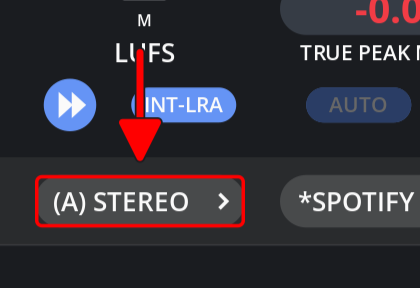
Use this dropdown menu to change the channel configuration.
{% hint style="info" %}
Configurations marked with **(A)** indicate an automatic recognition by the system. You can rely on these settings for standard operations, but adjustments can be made from the dropdown menu if necessary.
{% endhint %}
***
## Presets
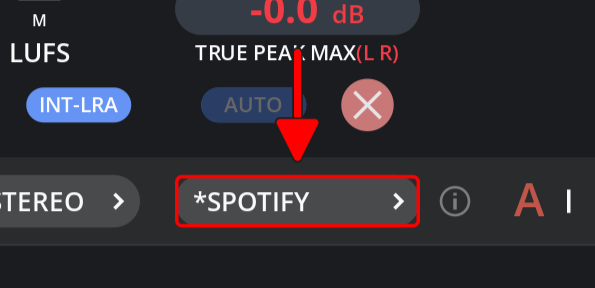
Use this dropdown menu to change the meter preset.
{% hint style="info" %}
Presets marked with an asterisk (**\***) indicate that the settings have been modified from their initial state.
{% endhint %}
***
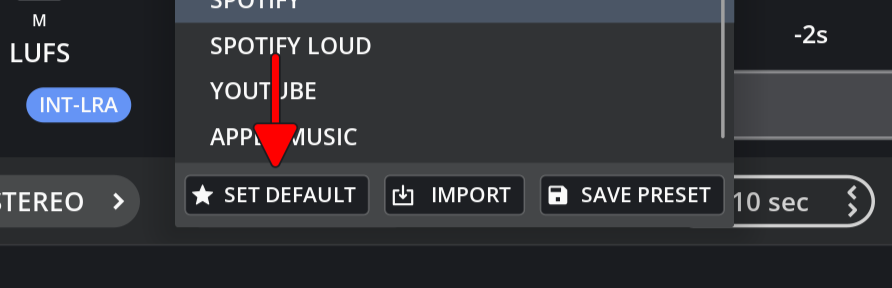
To set a preset as the default, simply click the **"Set Default"** option in the dropdown menu. Once you've set a preset as your default, it will automatically load each time the meter is loaded, ensuring a consistent setup tailored to your preferences.
***
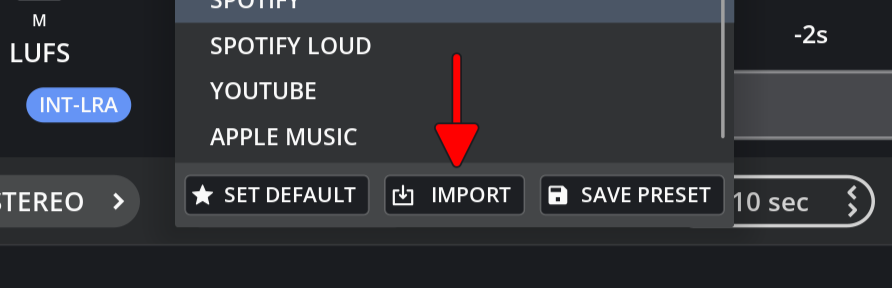
To import a preset, navigate to the **"Import"** option in the dropdown menu and select the file you wish to import. This allows you to quickly apply configurations from previously saved presets, streamlining your setup process.
***
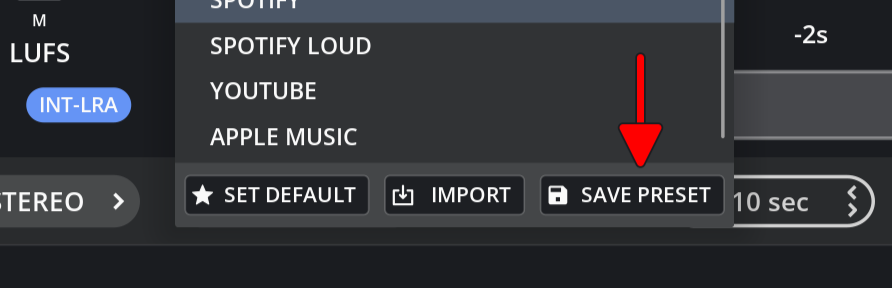
Click "**Save Preset"** to store your current settings for future use, ensuring easy access and application of your preferred configurations.
{% hint style="info" %}
Saved presets encompass all meter settings, including GUI size, to ensure consistent loading of necessary configurations across different systems.
{% endhint %}
***
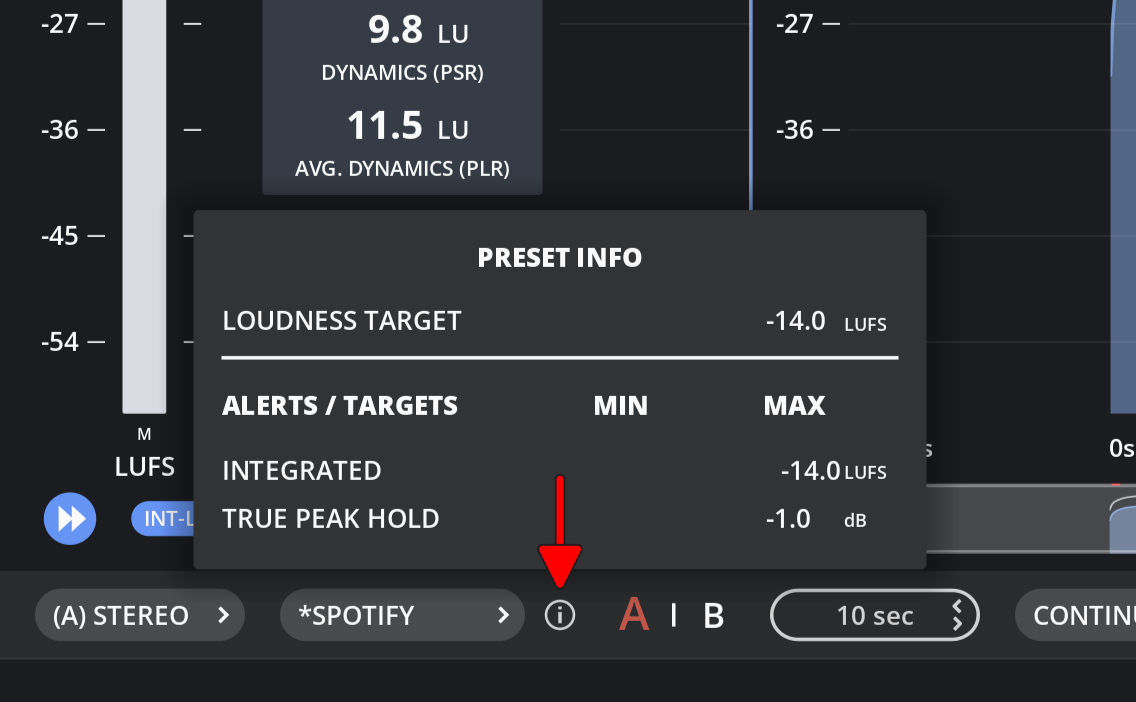
Hover your mouse over the **"i"** button to preview the current preset alerts and targets.
***
## Pause Measurements
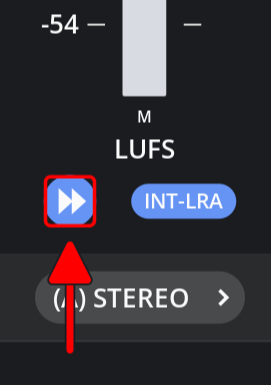
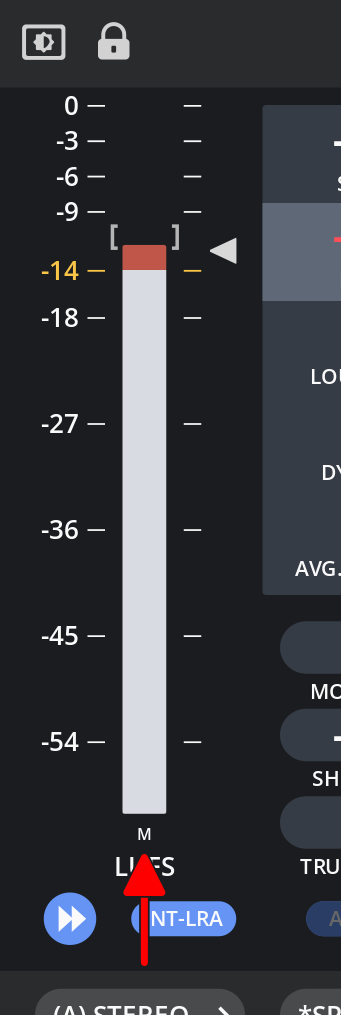
Click here to pause all measurements.
{% hint style="info" %}
After file analysis or normalization, measurements will be paused automatically.
{% endhint %}
***
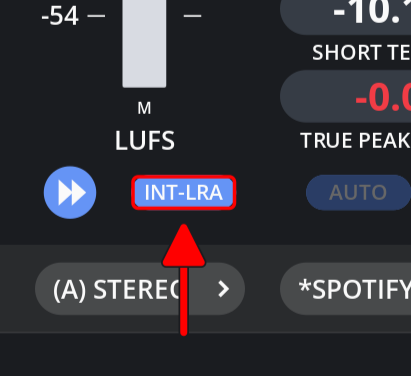
Click here to pause integrated loudness and loudness range measurements.
***
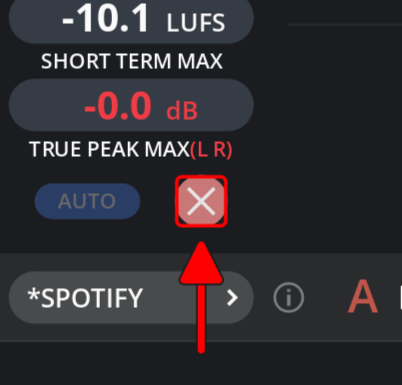
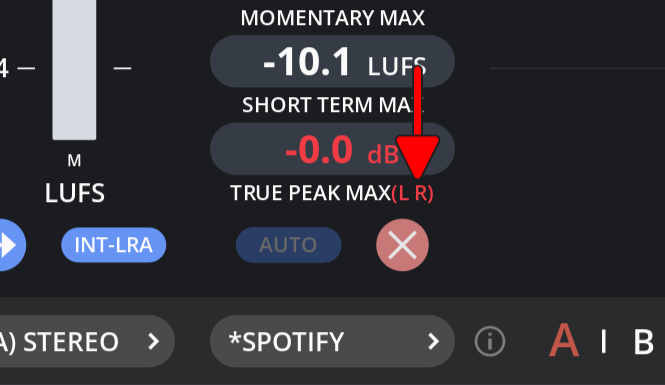
Click here to clear all measurements.
***
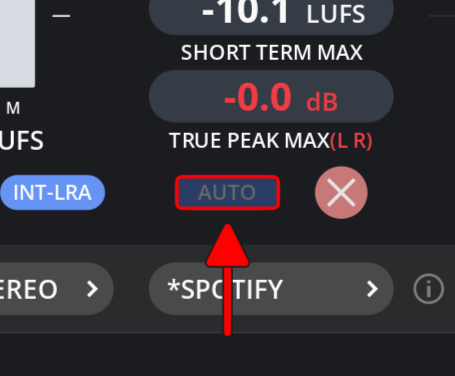
**"AUTO"** button will control if measurements will be cleared automatically once host starts playing.
{% hint style="info" %}
This button will be disabled when **"Continuous"** histogram mode is active because automatic measurement resets are not supported there.
{% endhint %}
***
## Meter Bars
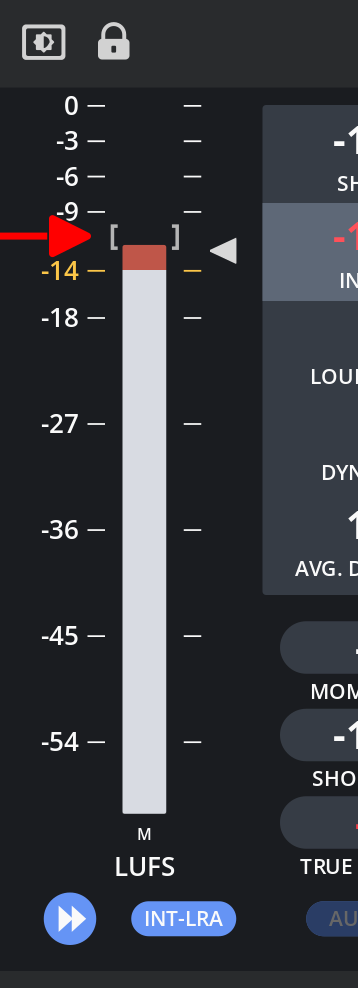
Three different styles of meter bars are available. In this style, the bar displays momentary loudness, while a triangle indicates short-term loudness.
***
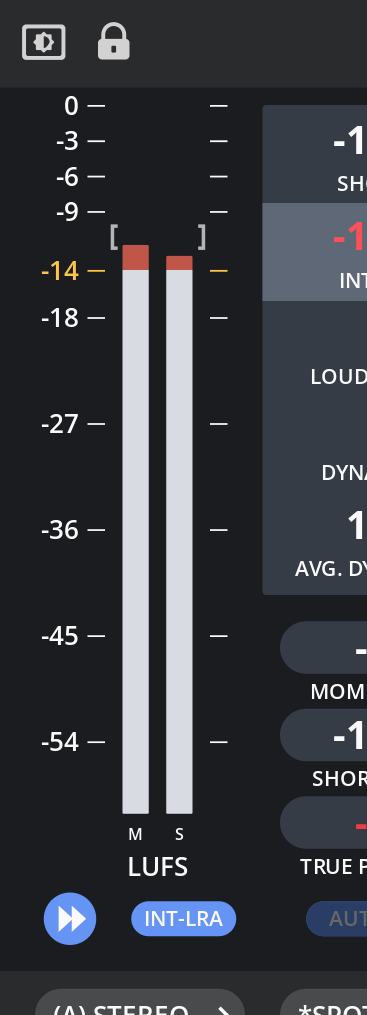
Here the left indicates momentary loudness, and the right displays short-term loudness.
***
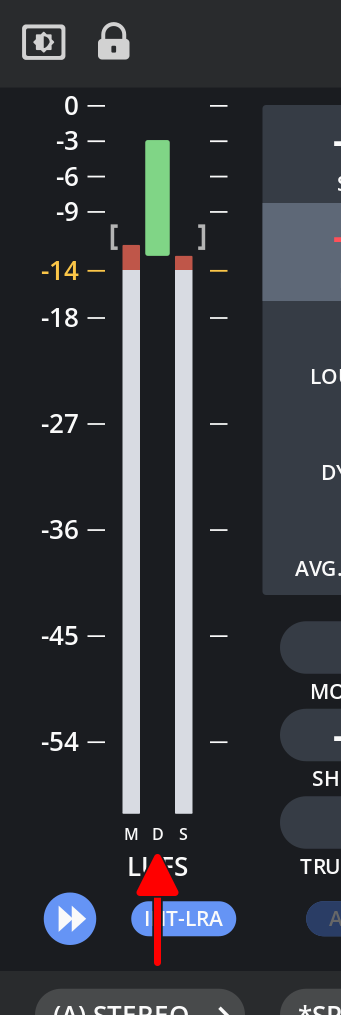
Here the left indicates momentary loudness, middle one indicated dynamics, and the right displays short-term loudness.
***
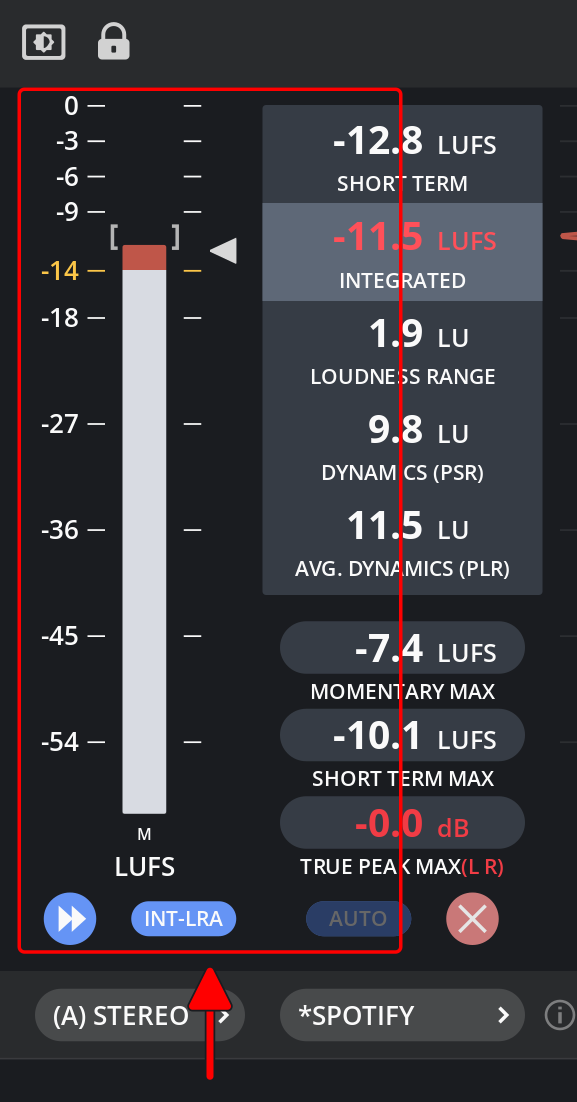
This is the loudness range indicator.
## Peak Meters
In the [View Menu](/youlean-loudness-meter/settings-and-menus/meter-menus/view-menu.md) you can enable true peak meters. Peak meters channel configuration will be adjusted automatically based on the channel settings.
{% hint style="info" %}
You can show all peak meters even if your channel configuration is for example mono. That could help you detect if the audio is coming from channel that is not included in the current channel configuration. This setting can be changed in the [View Menu.](/youlean-loudness-meter/settings-and-menus/meter-menus/view-menu.md)
{% endhint %}
***
## Numerical Readouts
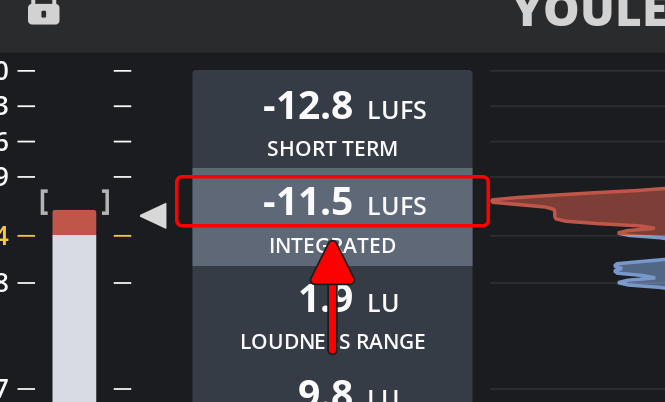
The numerical displays will provide the current measurements.
{% hint style="info" %}
If the last 3 seconds of analysis are silent, dynamics and short-term measurements may be invalid. This occurs because these measurements are real-time and reflect only the most recent audio.
{% endhint %}
***
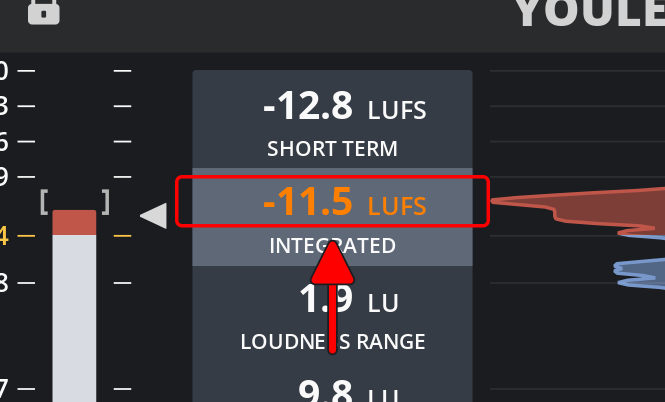
If the measurement is below its target, it will be shown as orange.
***
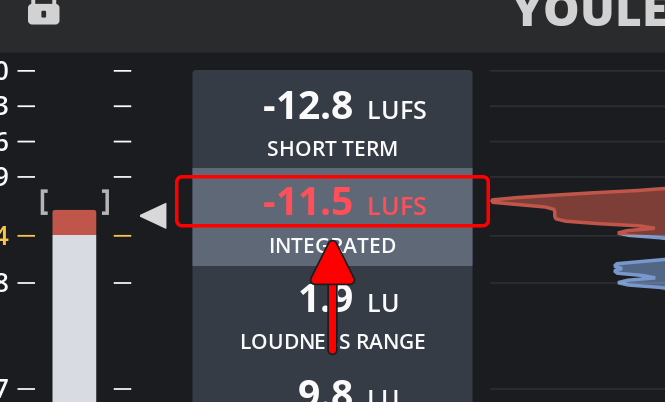
If the measurement is above its target, it will be shown as red.
{% hint style="info" %}
You can set measurement targets in the [Settings Menu. ](/youlean-loudness-meter/settings-and-menus/meter-menus/settings-menu.md)
{% endhint %}
***
You can reset some measurements by clicking on it.
***
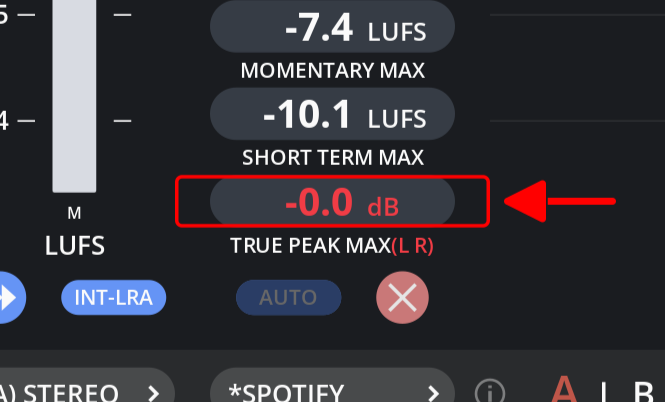
True peak measurement will show you the channels where value was above the target.
***
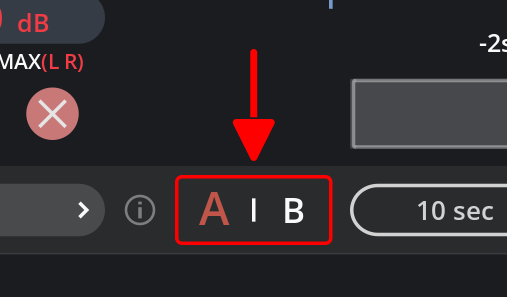
## A/B State
You can switch between two states on the meter to compare measurements. First, analyze in State A, then switch to State B and analyze the other material. You can then toggle between these states to compare the results.
***
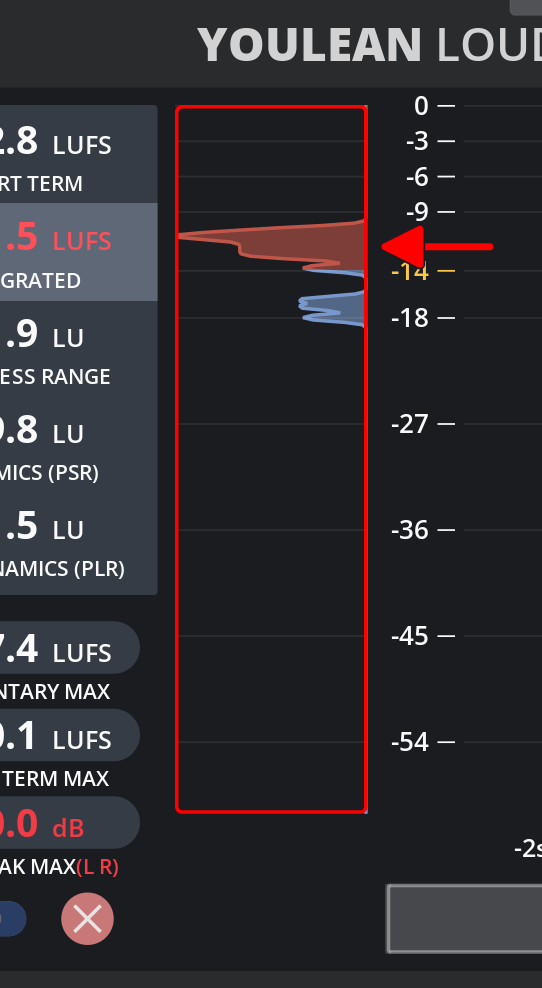
## Distribution View
This will show you the distribution of all loudness, dynamics or true peak measurements.
***
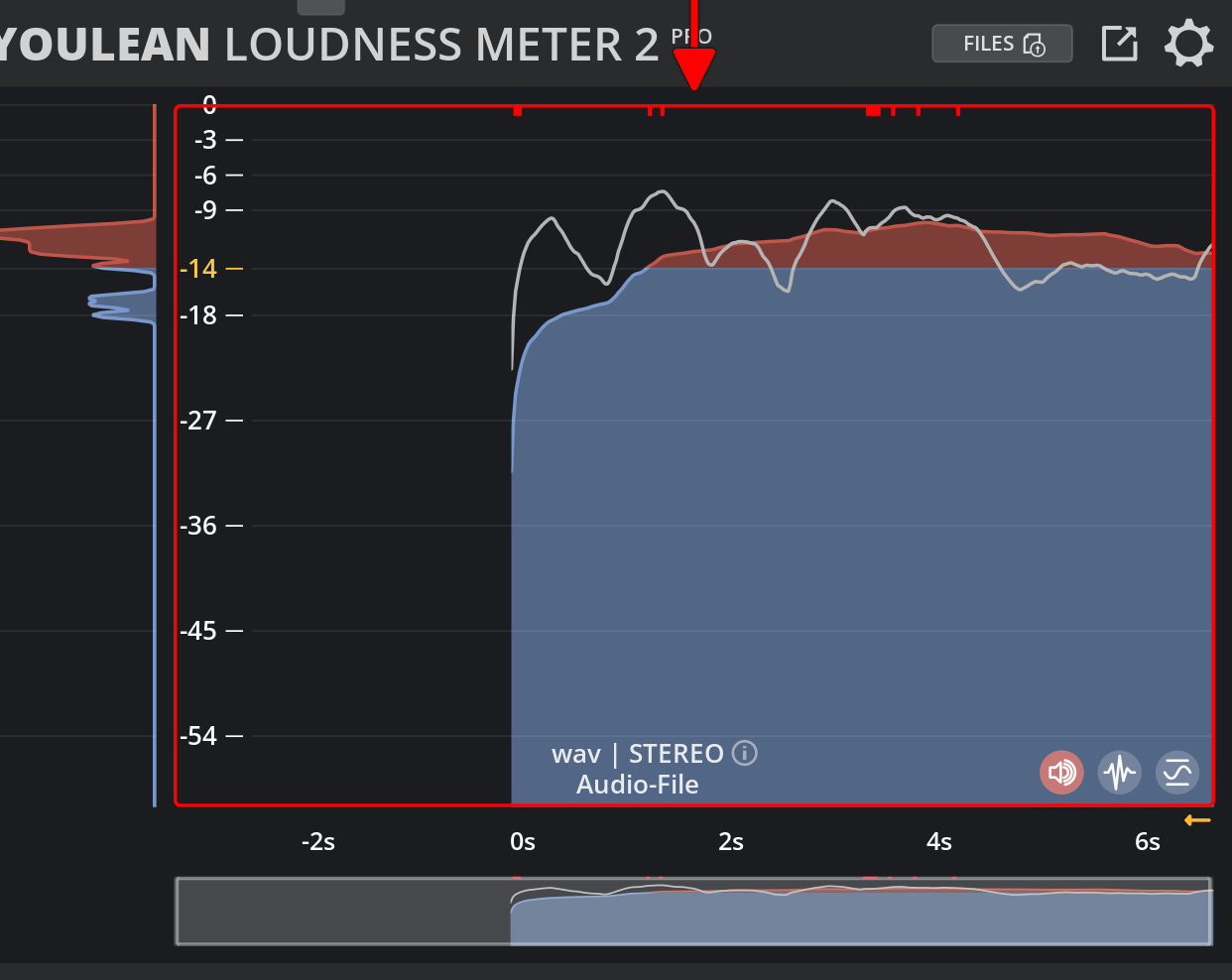
## Histogram View